

2. SMS Task Submission
2.1. SMS Task Entry
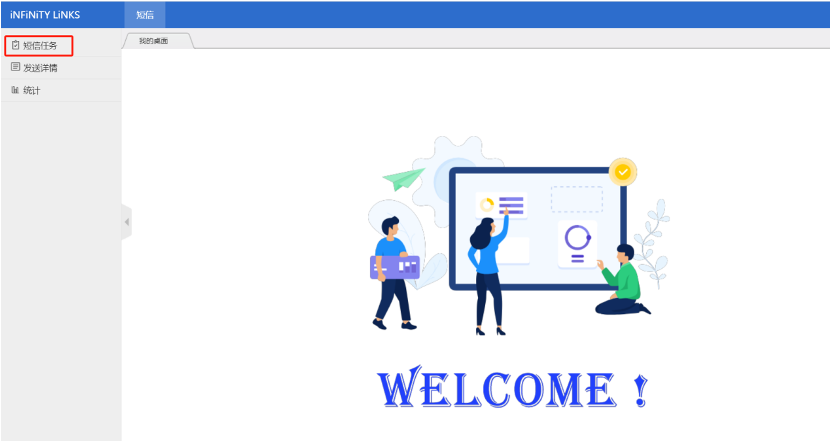
Click the "SMS Task" menu button in the upper left corner of the page to enter the SMS task management interface.
2.2. Creating a New Task
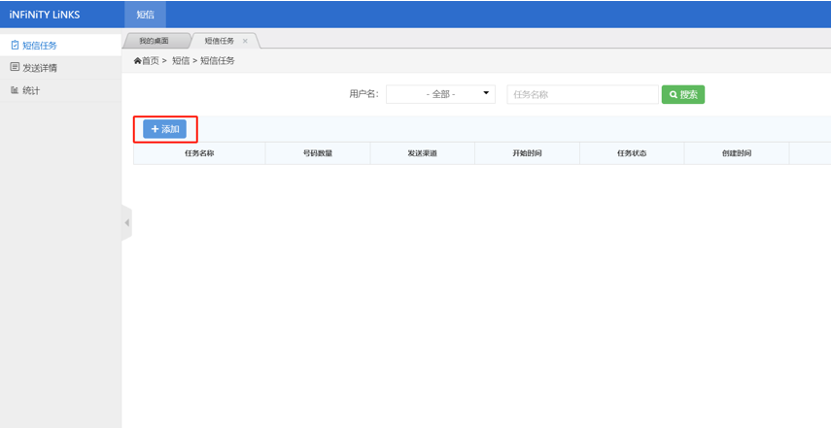
On the SMS task interface, click the "Add Task" button to enter the task creation page.
2.3. Task Name Setting
Set a clear and identifiable task name for the new task, such as "Business Settlement Notice".
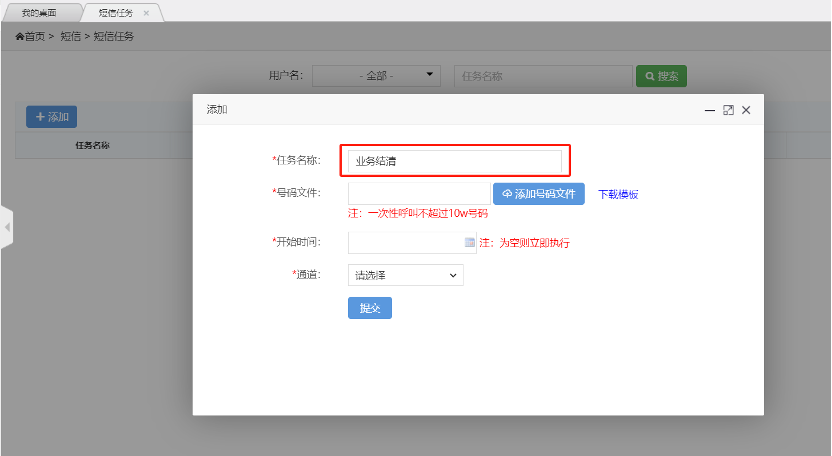
2.4. Recipient Number Import
Important Note: Before importing numbers, please first obtain the standard template by clicking the "Download Template" button. When filling out the template, please strictly follow the specified format.
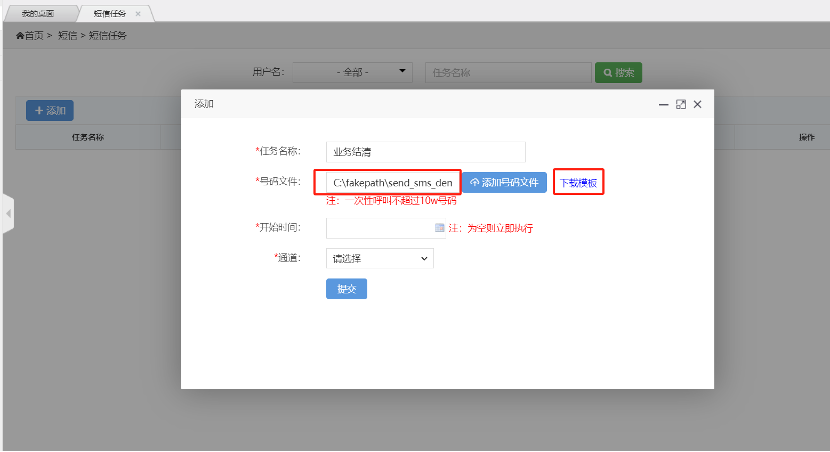
Number format requirements: Must include country code, using the format 00+country code+phone number. For example, Indonesian numbers should be: 0062+mobile number.
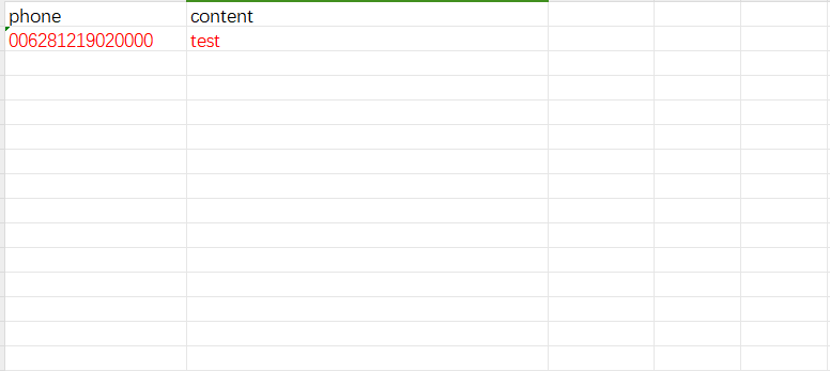
After completing the template, click the submit button to upload the file.
2.5. Sending Time Configuration
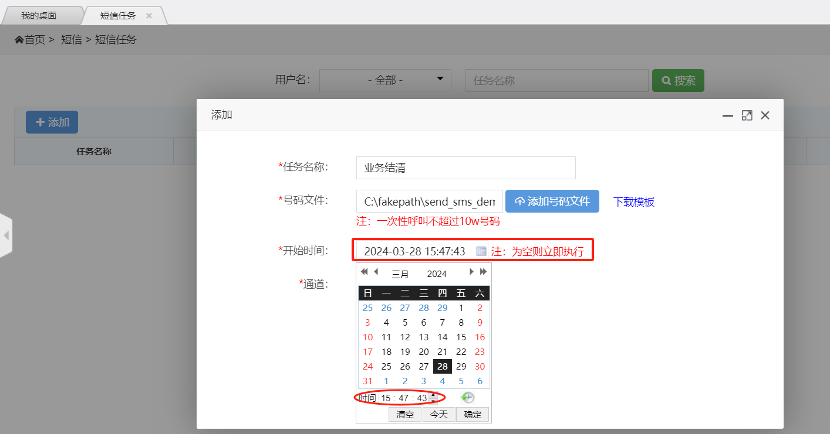
The system supports two sending modes:
- Immediate sending: Leave the time field empty, and the system will process the sending immediately after task submission
- Scheduled sending: Select a specific scheduled sending time, and the system will automatically start the sending task at the specified time
2.6. Channel Selection and Submission
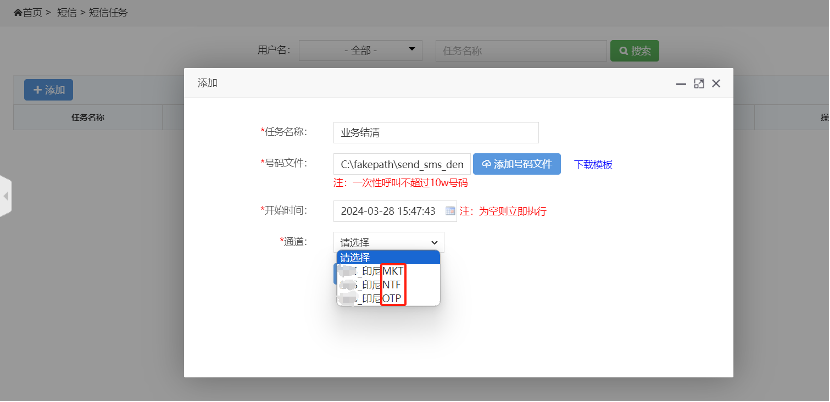
Select the appropriate sending channel based on the SMS content type:
- OTP verification code SMS: Select accounts ending with "otp"
- Marketing promotion SMS: Select accounts ending with "mkt"
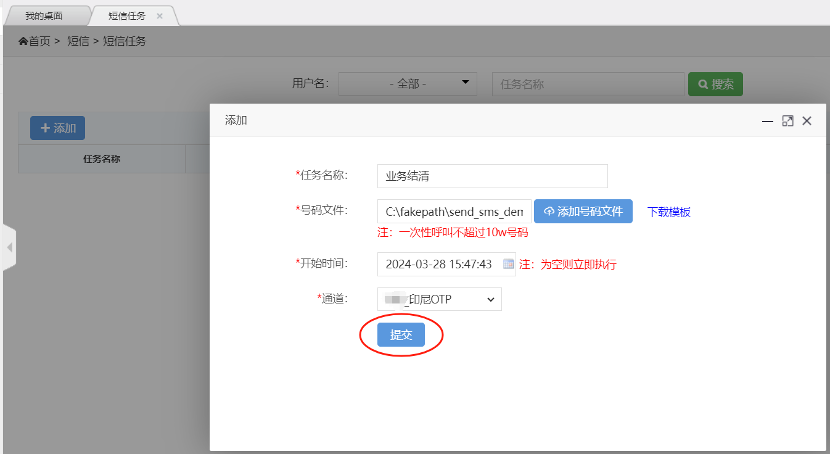
After selection, click the "Submit" button to complete task creation.