


Extension Group Management (Data Permission Isolation)
This document outlines the management logic and configuration workflow for "Extension Groups." This feature is designed to achieve logical data isolation within an enterprise through grouping. It ensures that administrators from different departments, regions, or organizational levels can only view and manage extension data within their authorized scope.
⚠️ Important Note: Concept Distinction
Data Scope Group: Used for data permission control. It determines which extension data an administrator can see in reports, recordings, and monitoring (i.e., who can be seen).
Skill Group: Used for call routing. It determines which agents receive incoming customer >calls (i.e., who receives the call).
Relationship Between the Two: They are completely independent. A single extension can belong to a "Sales Data Scope Group" (visible only to the Sales Director) while simultaneously belonging to a "Pre-sales Consulting Skill Group" (to receive consultation calls).
Feature Overview
The Extension Group Management module allows super administrators to create virtual organizational units (i.e., "Extension Groups"). This enables the categorization of dispersed extension accounts based on business attributes (e.g., East China Region, After-sales Department, VIP Project Team) and the assignment of dedicated group administrators.
Data Isolation: Upon logging in, the system automatically filters data for group administrators. Their views for call statistics, recording files, and real-time monitoring are strictly limited to extensions within their respective groups.
Delegated Administration: Enables hierarchical management, freeing super administrators from micromanaging daily tasks. Department heads can independently manage the call quality of their own departments.
Flexible Configuration: Supports either cross-group visibility for extensions (for special scenarios) or strict exclusivity, accommodating complex matrix management structures.
Feature Access
Log in to the Call Center Console. In the left navigation pane, go to CallsVoice > Extension ManagementAgents > Extension Group Management (this menu is visible only to super administrators).
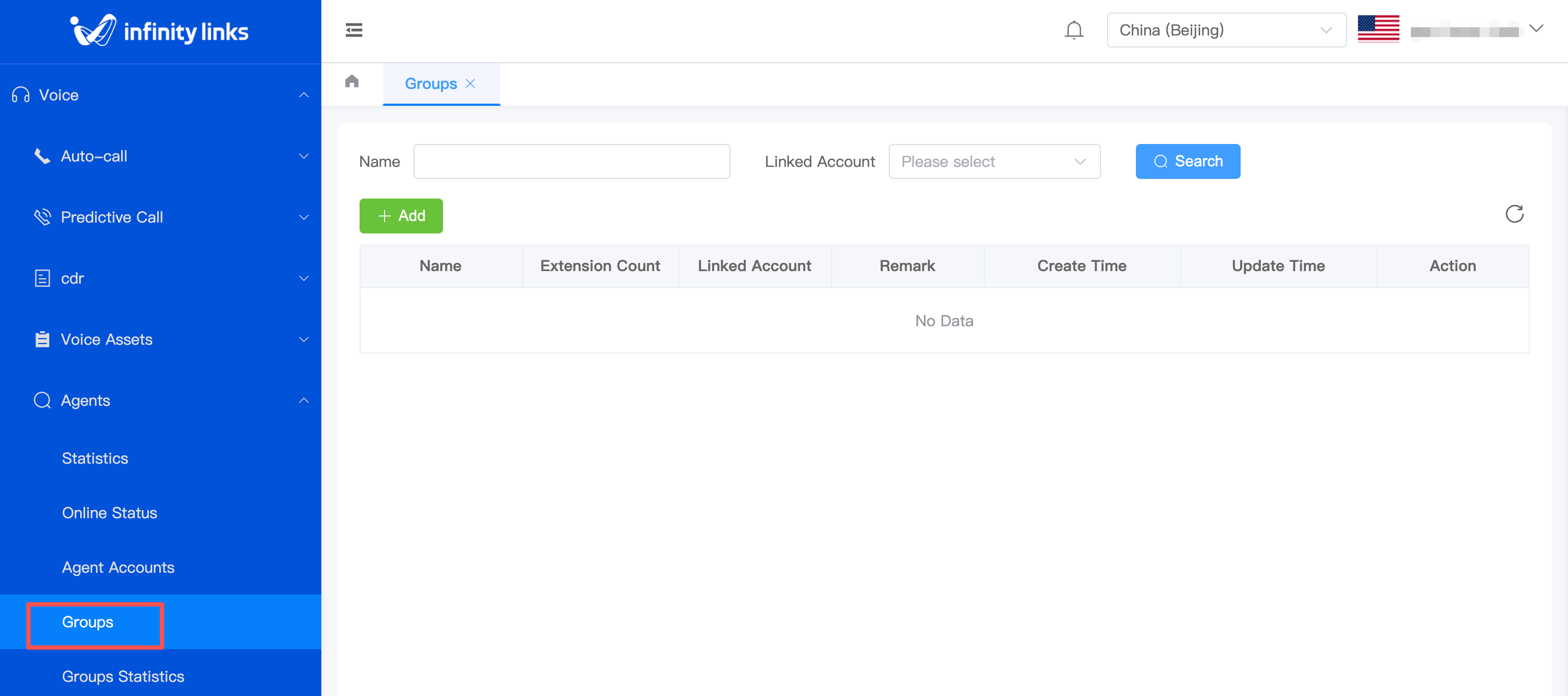
Feature Details
Create an Extension Group
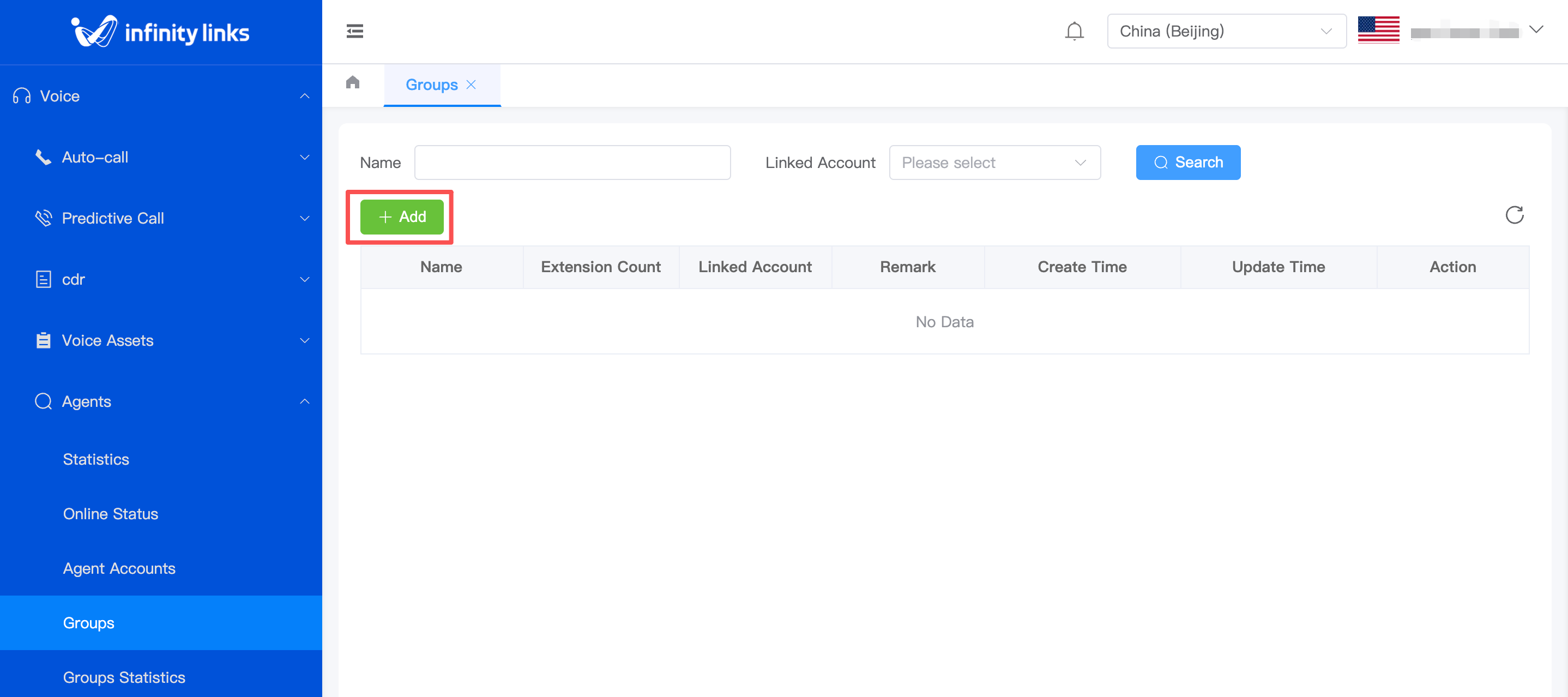
1.On the Extension Group list page, click the Add button at the top.
2.In the Add dialog box that appears, fill in the basic information and click Confirm to save.
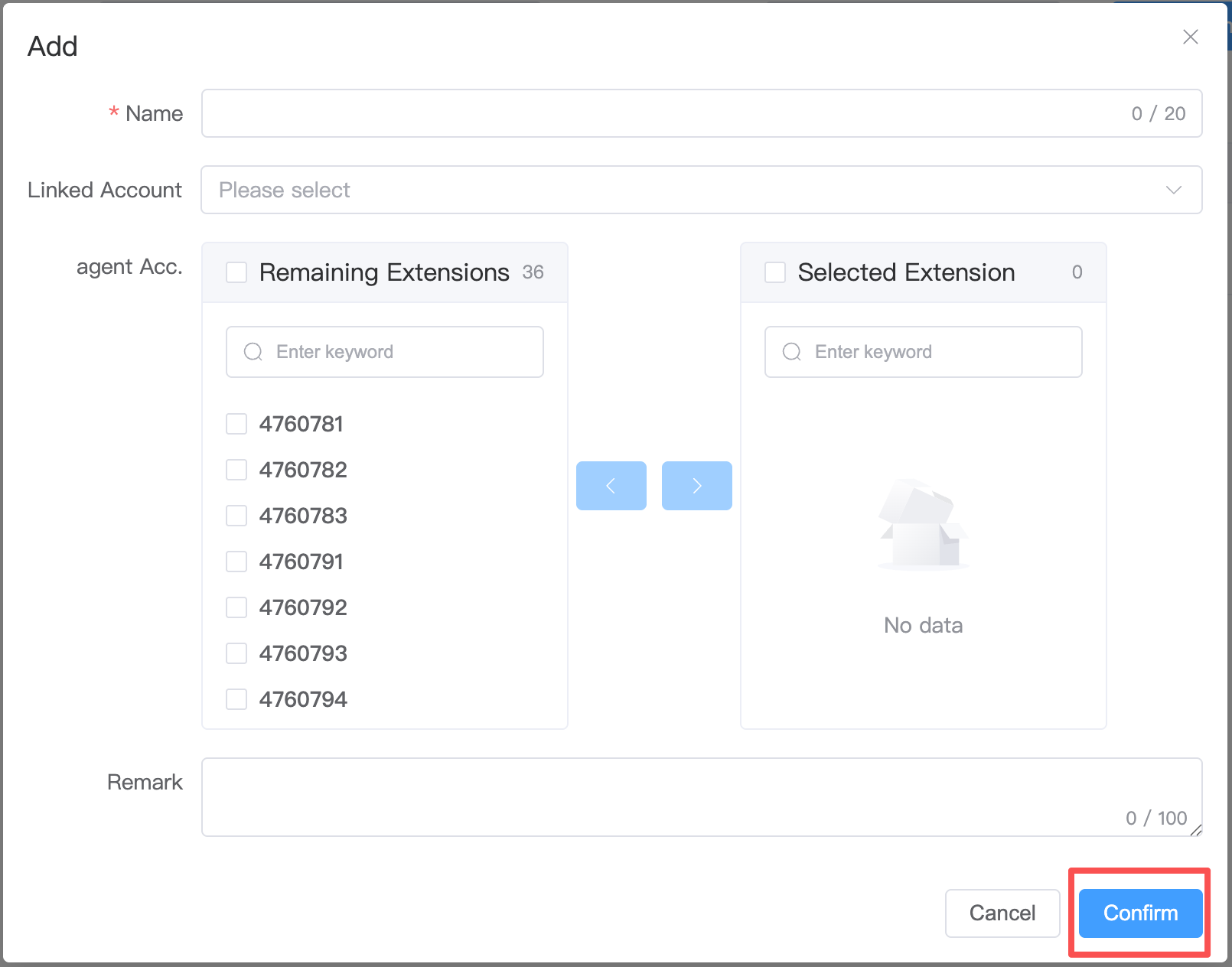
2.1 Basic Information Configuration
- Name (Required)*: Enter the business name for the extension group, such as "East China Sales Region" or "After-sales Technical Support".
- Associated Accounts (Optional): Select one or more system users from the drop-down list to assign them directly as "Group Administrators" for this group. Once logged in, the selected accounts will have their views automatically filtered to display only the extension data within this group. If no accounts are selected, administrators will need to be configured separately later.
- Remarks (Optional): Enter supplementary descriptions about this group, such as "Includes all probationary agents" or "View data from the past six months only". This is strictly for internal record-keeping and does not affect system logic.
2.2 Assign Extension Members (Core Interaction)
Use the Transfer Box mechanism to flexibly select extensions to be added to this group:
-
Left Panel: Available Extensions
- Displays a list of all available extensions in the current system that have not been added to any group (or have not been added to this specific group).
- The total number of available extensions is displayed at the top (e.g., 5 as shown in the screenshot).
- Use the search box to enter keywords (extension number or name) to quickly filter for target extensions.
- Check individual checkboxes or click the header checkbox to select or deselect all.
-
Center Panel: Action Buttons
- (> Right Arrow): Moves the checked extensions from the "Available Extensions" on the left to the "Selected Extensions" on the right.
- (< Left Arrow): Moves the checked extensions from the "Selected Extensions" on the right back to the "Available Extensions" on the left (i.e., removes them from the group).
-
Right Panel: Selected Extensions
- Displays the list of extensions that are pending addition to this extension group.
- The total number of selected extensions is displayed at the top (e.g., 0 as shown in the screenshot).
- If the list is empty, a "No data" placeholder will be displayed.
- Search and batch operations are also supported in this panel.
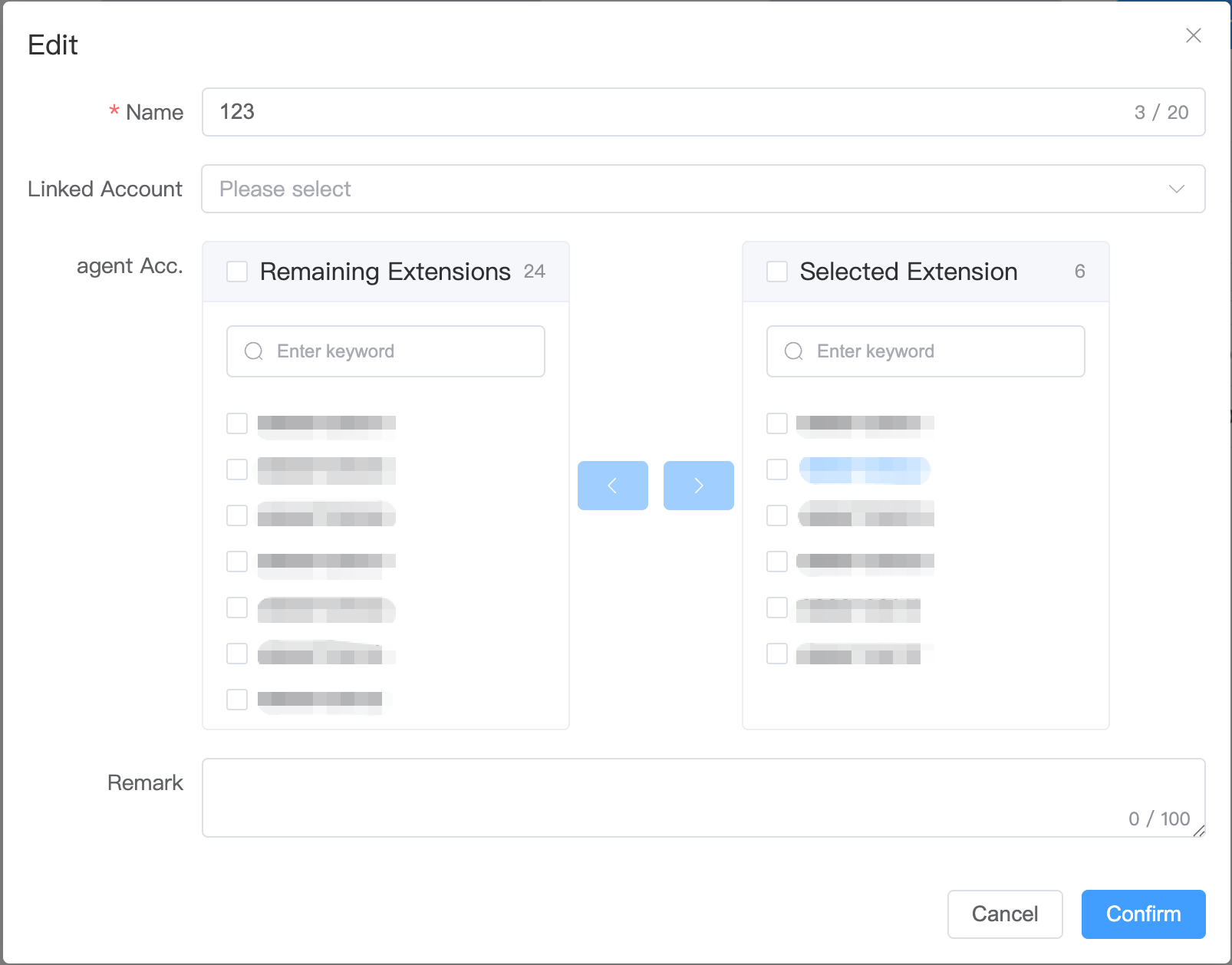
Edit an Extension Group
1.On the Extension Group list page, locate the row you want to modify and click Edit in the Action column.
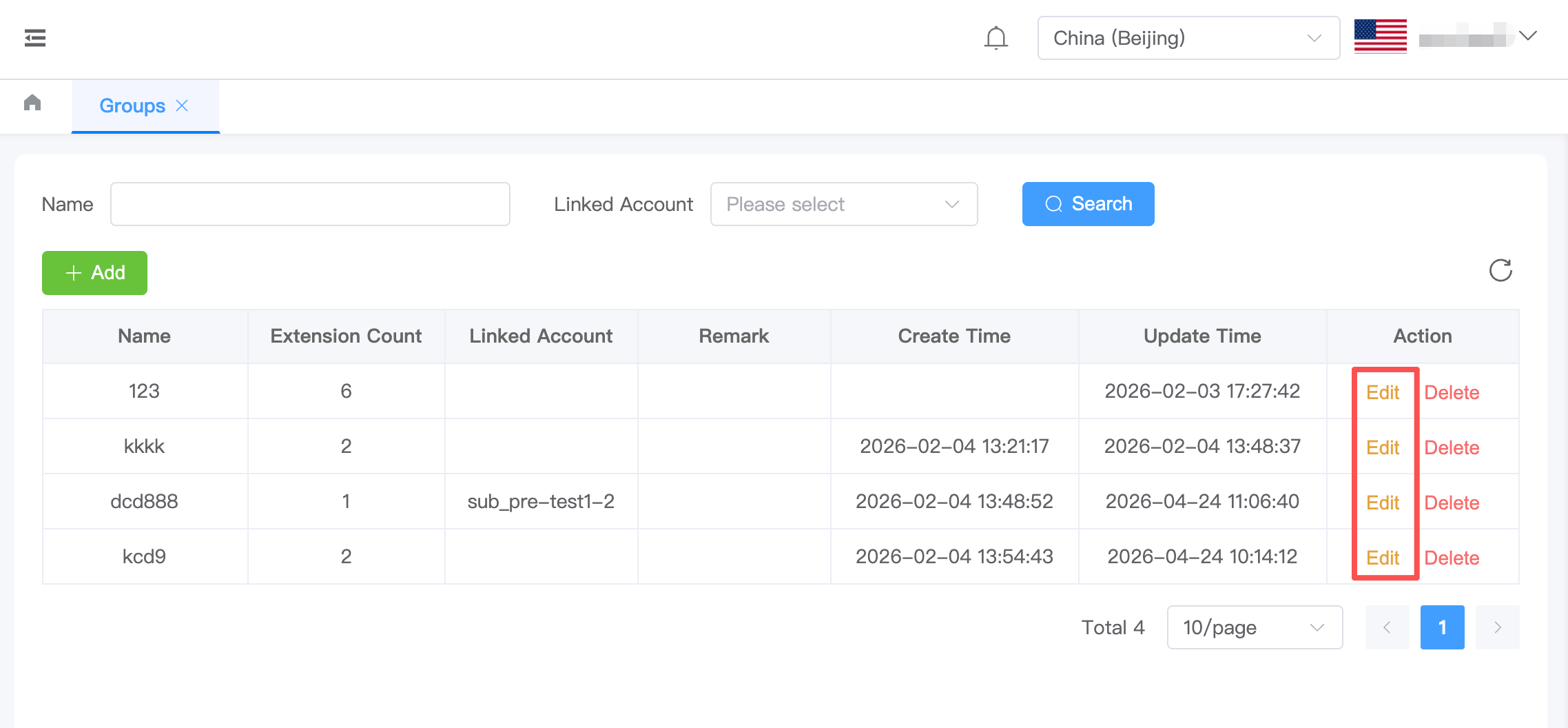
2.In the Edit dialog box that appears, you can modify the Name, Associated Accounts, Remarks, and other information.
Delete an Extension Group
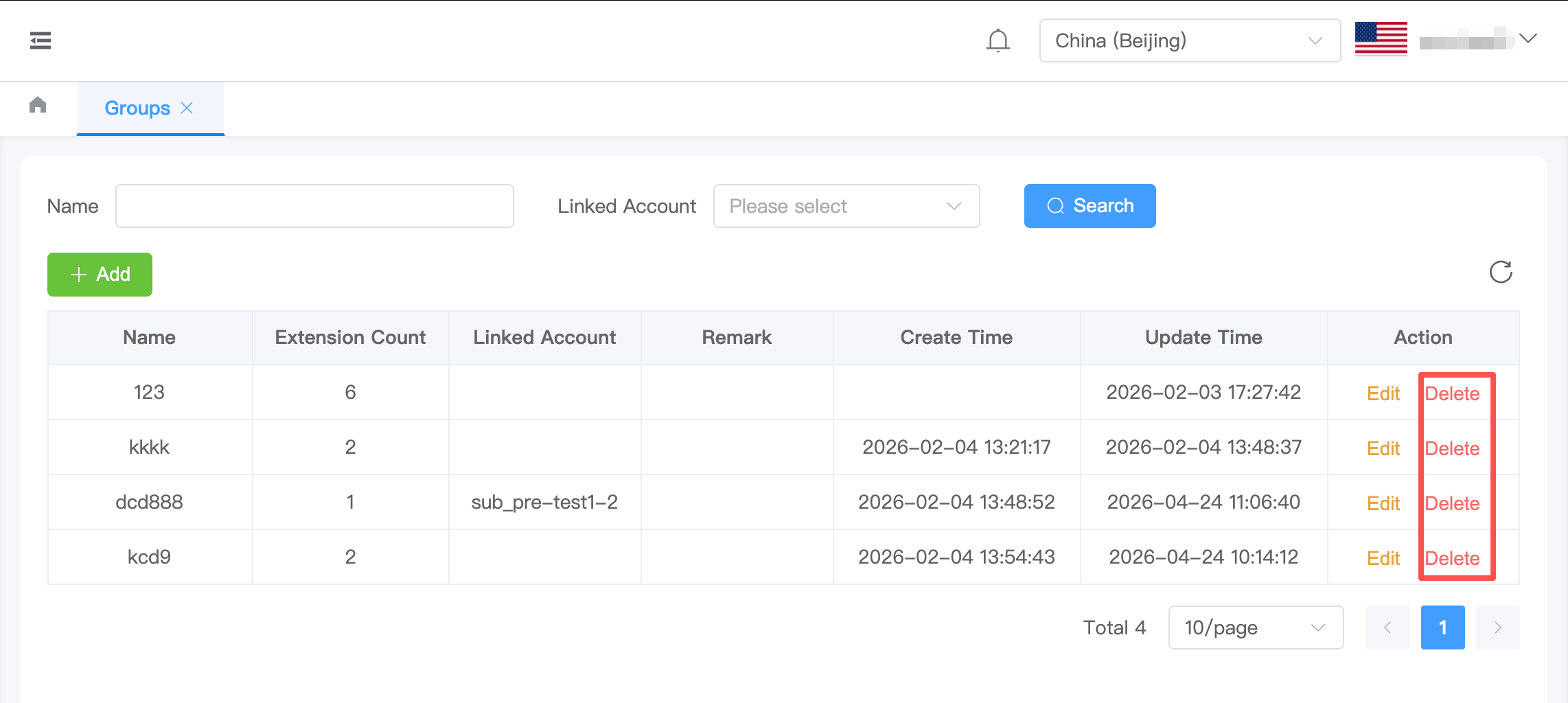
1.On the Extension Group list page, locate the row you want to delete and click Delete in the Action column.
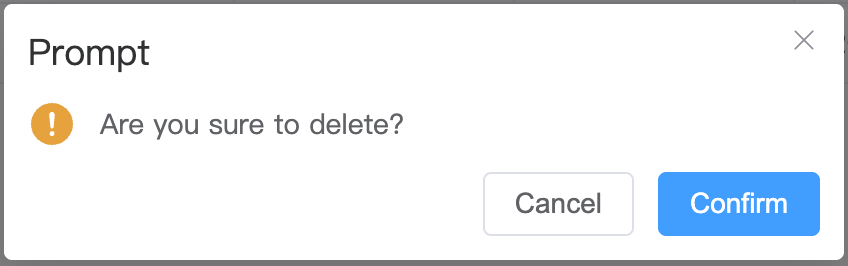
2.In the confirmation dialog box that appears, click Confirm to delete the group.
Data Isolation Rules
Once configured, the system strictly enforces the isolation logic in the following scenarios:
| Feature Module | Isolation Behavior |
|---|---|
| Extension Call Statistics | When a Group Administrator views reports, the "Extension Number" filter drop-down will only display extensions belonging to their group. Total statistics and chart trends are calculated based solely on this group's data. |
| Call Details & Recordings | The list displays call records exclusively for extensions within the group. If an administrator clicks "Play Recording" for a recording that does not belong to an extension in their group, the system will block access and display a "No permission" message. |
| Real-time Monitoring Dashboard | Only the real-time status (e.g., In Call, Idle, Break) of extensions within the group is displayed. The status of agents in other groups is hidden from this administrator. |
| Batch Export | Exported Excel/PDF files contain detailed data strictly for extensions within the group. Unauthorized data cannot be recovered through any technical means. |
Operation Example
Scenario: A Super Administrator needs to create an independent data group for the "Beijing Branch," assign Zhang San as the person in charge, and include extensions 8001-8005.
Go to Extension Group Management and click Add.
Name: Enter "Beijing Branch Data Group".
Associated Accounts: Select the user "Zhang San (zhangsan)" from the drop-down list.
Extension Numbers:
- In the "Available Extensions" list on the left, check the boxes for 8001, 8002, 8003, 8004, and 8005.
- Click the > button in the center to move these 5 extensions to the "Selected Extensions" list on the right.
- Remarks: Enter "Viewable only by Beijing Regional Managers".
- Click Confirm.
Result: Once logged in, Zhang San will only be able to view the call records and recordings for these 5 extensions. All other extensions will be invisible to them.
Notes
- Exclusivity Check: If the system is configured in "Exclusive Mode," attempting to move an extension that already belongs to another group into this group may trigger a conflict prompt or require removing it from the original group first (depending on the global system policy).
- Instant Effect: After an extension's group affiliation is changed, the Group Administrator's view typically refreshes and takes effect within 1 to 2 minutes.
- Account Permissions: Users selected as "Associated Accounts" must possess the basic "View Reports" role permission. Otherwise, they will not be able to access the corresponding menu even if added to the group.
- Deletion Protection: If an extension group still contains members or has an assigned administrator, the system prohibits direct deletion of the group. You must first clear the members or unbind the administrator before deleting.