


2.Create Task
Feature Access
1.Log in to the admin console. In the left-side navigation pane, select Voice, then click Predictive Dialer from the expanded menu. On the subsequent page, choose Task Management to access the management interface.
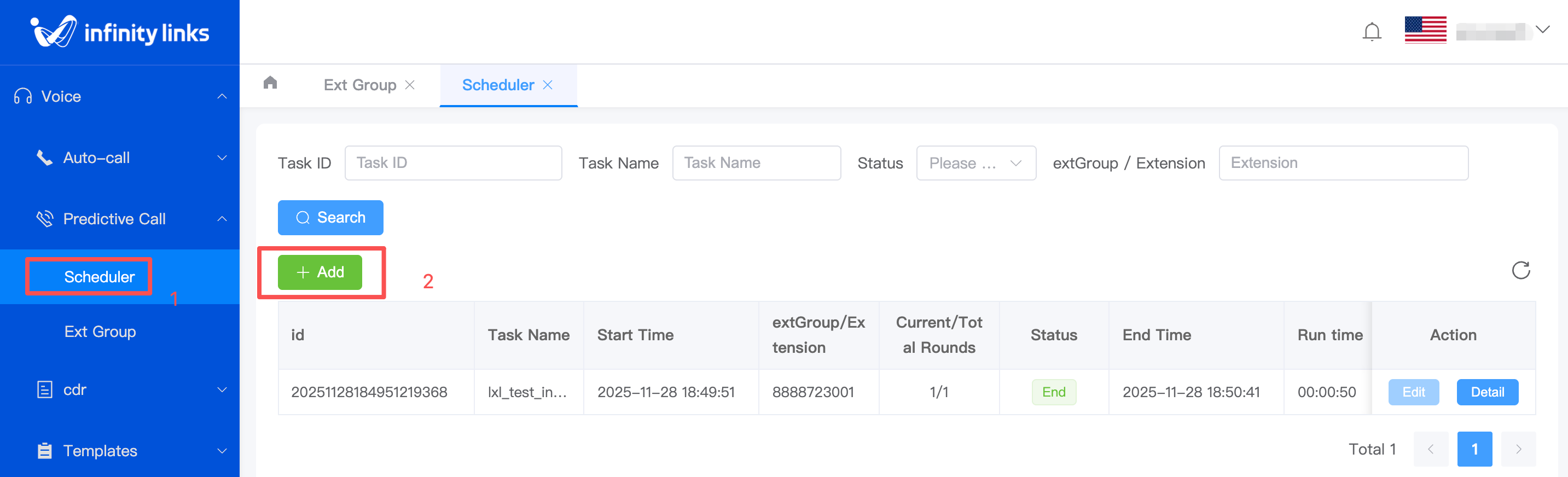
2.On the Predictive Dialer Task Management page, click "Add" to open the configuration form. Fill in the required information according to your business needs, then click "Confirm" to complete the task creation.
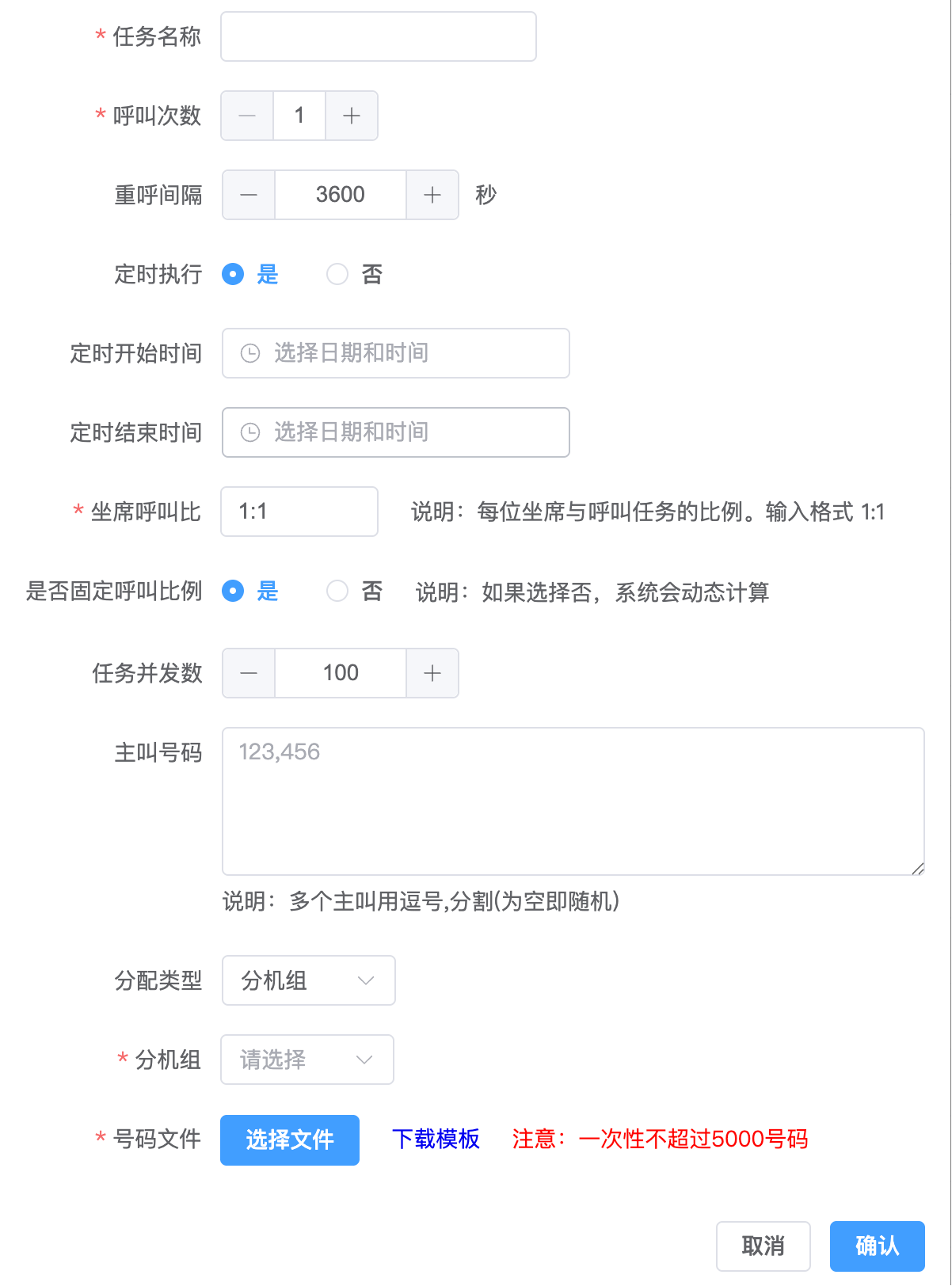
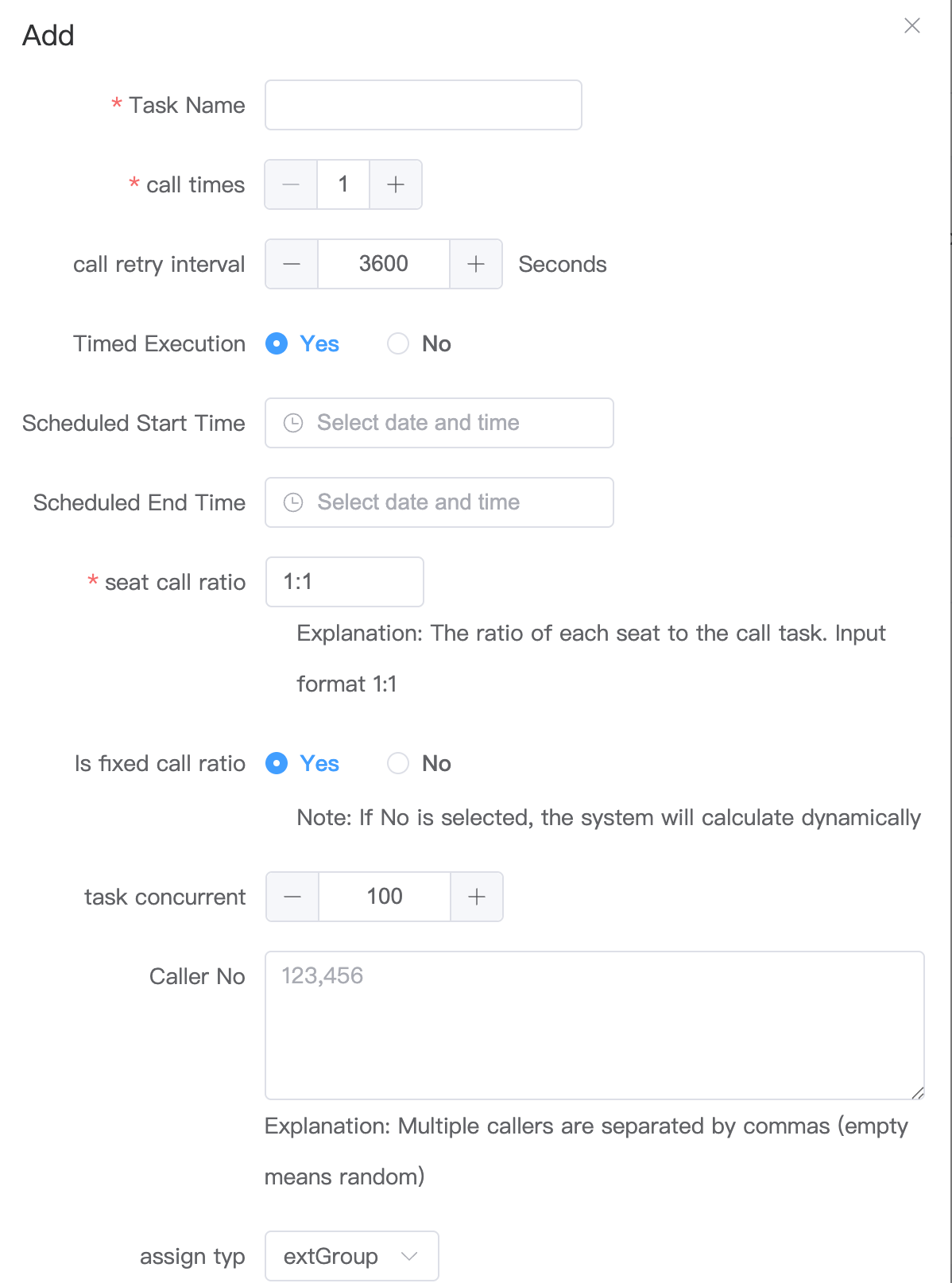
Task Name
Set a recognizable name for this outbound calling task, such as “September Customer Follow-up” or “Product Promotion Campaign,” to help quickly identify and manage it in the task list.
Number of Call Attempts
The maximum number of times the system will attempt to call the same recipient number.
Example: If set to “3,” the system will try calling that number up to 3 times.
Note: This count includes the first call attempt. If the first call is not answered (e.g., busy, no answer, phone off), the system will retry based on the Redial Interval setting until it either reaches the maximum number of attempts or successfully connects.
ScheduledCall Execution
Choose “Yes” or “No.”
Yes: The task status automatically changes to “Running.” The system starts dialing at the scheduled start time and stops automatically at the end time.
No: The task status remains “Not Started” after creation. You must manually click the Start button to begin dialing.
RedialRetry Interval
The minimum waiting time (in seconds) before the system retries a call to the same number after a failed attempt.
Unit: seconds Example: Setting it to “600 seconds” means the system waits at least 10 minutes before the next attempt. Note: Actual redial timing may vary slightly due to system scheduling or agent availability.
Agent-to-Timed Execution
Choose “Yes” or “No.”
Yes: The task status automatically changes to “Running.” The system starts dialing at the scheduled start time and stops automatically at the end time. No: The task status remains “Not Started” after creation. You must manually click the Start button to begin dialing.
Set Call Ratio
A core parameter for predictive dialing, defining how many concurrent calls the system dials per ready agent.
Principle: The system predicts when agents will become available and places calls in advance. For example, a ratio of “1:2” means the system aims to have 2 connected calls ready for every available agent to maximize utilization.
Impact: Too high → Customers may wait too long after answering (“dry wait”), hurting experience. Too low → Agents sit idle, reducing efficiency. Adjust based on your business scenario and customer answer rates.
Is Fixed Call Ratio
(This option usually works together with “Agent-to-Call Ratio”)
Yes: The system strictly follows the configured Agent-to-Call Ratio. No: The system dynamically adjusts the number of concurrent calls based on real-time factors (e.g., historical answer rate, agent status), even if it deviates from the set ratio, to better adapt to changing conditions.
Assign Type
Choose how agent resources are assigned to this outbound task:
Agent Group: Assign the task to one or more skill-based agent groups. All agents within the selected group(s) will share and handle the incoming connected calls.
Extension: Assign the task directly to specific agent extensions. Only the designated agents will receive calls from this task.
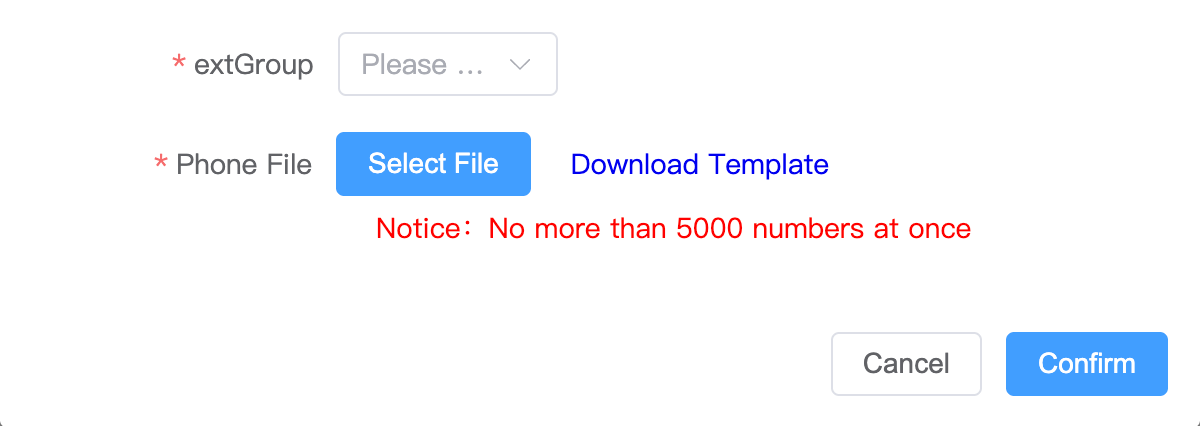
If you select Agent Group, you must then choose a specific skill group. All agents in that group will participate in the task and receive calls when available.
If you select Extension, you must enter or select specific agent extension numbers. Only those agents will handle calls for this task.
Caller IDNo
The phone number displayed on the customer’s device when receiving the call. You can select a pool of numbers; the system will rotate or randomly pick from this set during outbound calls to distribute calling load and avoid overusing a single number.
NumberPhone File
Upload a file containing the customer phone numbers and related information for this campaign.
Format: .xlsx Required Column: At least include a “Recipient Number” column. Optional Columns: Customer name, custom fields, etc.—used for agent screen pop or reporting purposes.