


软电话操作手册
推荐的手机软电话:Zoiper
安卓系统
1. APP 下载与安装
在 Google Play 上搜索 “Zoiper IAX SIP VOIP Softphone” 进行下载,或使用以下载链接直接下载: https://play.google.com/store/apps/details?id=com.zoiper.android.app&hl=zh
2.软电话配置
打开 Zoiper 应用并授予必要的权限
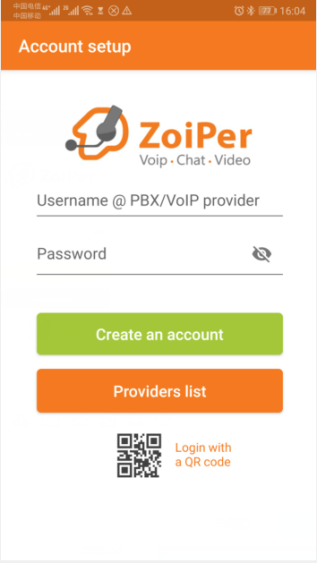
输入分机号和密码,然后点击“创建账户”(参见下图):
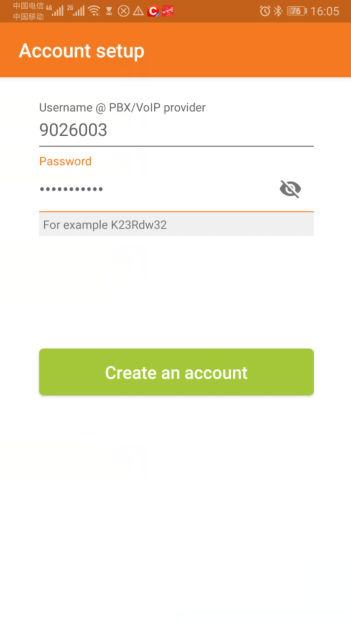
配置域名,然后点击下一步(参见下图)。


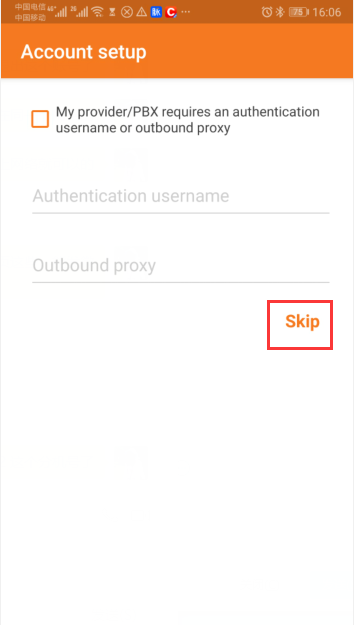
跳过提供商设置(参见下图)。
在“选择配置”下,等待协议选项加载完毕,选择合适的协议,然后点击完成。
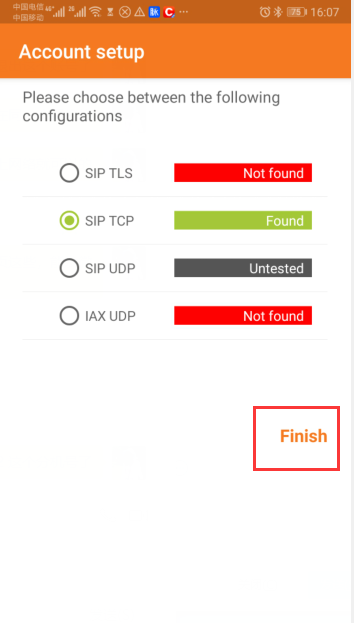
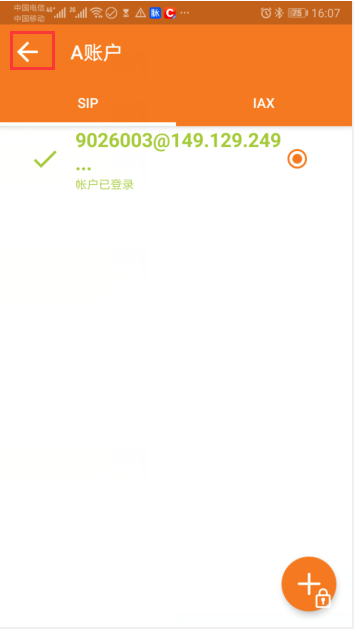
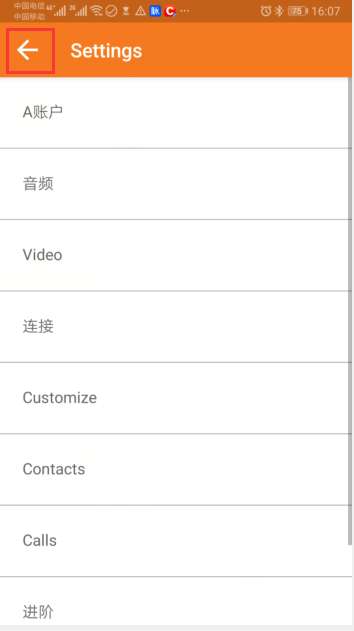
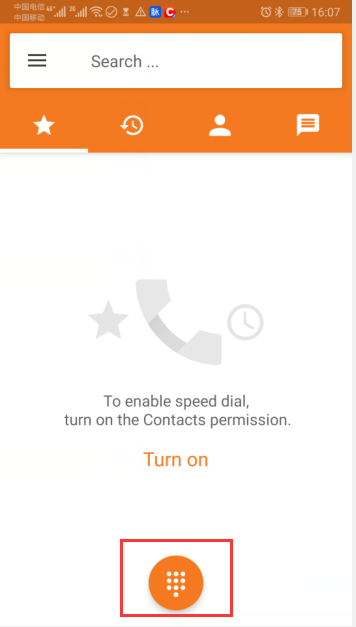
配置完成。返回主屏幕即可拨打电话。
注意:印度尼西亚号码以“8”开头,无需添加“0”或“62”等前缀(参见下图)。
三、 iOS 系统
1. APP 下载与安装
请使用非中文地区的 App Store 账号搜索 “Zoiper” 并下载该应用(参见下图)。
2. 软电话配置
打开 Zoiper,授予权限,然后依次进入:设置 > 账户 > “+” > 手动配置 > SIP 账户。
填写以下信息,然后点击“注册”:
| 名称 | 内容 |
|---|---|
| Account name | 填写我们提供的分机号 |
| Domain | 填写我们提供的域名 |
| User name | 填写我们提供的分机号 |
| Password | 填写我们提供的分机密码 |
具体操作截图如下


MicroSIP - PC 版
1、安装软电话——MicroSIP
安装软电话 —— MicroSIP 操作流程
打开我们提供的 MicroSIP 安装包进行安装。

请选择您自己的安装语言;

安装完成后,打开 MicroSIP 软件界面;
 *
*
2、软电话登录
注意:软电话登录主要用于外呼系统用户在接听来电后进行软电话操作。坐席人员可通过点击软电话上的“接听”或“拒绝”按钮,选择是否接听来电。因此,每位坐席人员均需登录一个软电话账户。默认情况下,一名坐席对应一个软电话账户。如需更多软电话账户,请与我们联系。
软电话配置操作步骤如下:
1。点击 MicroSIP 界面,点击下方三角形按钮中的“添加账户”(Add Account),弹出如下所示的配置界面;

2. 需要填写以下配置项:
账户名称:我们提供的软电话账户;
SIP 服务器:我们提供的服务器 IP 地址或域名;
用户名:我们提供的软电话账户;
域名:我们提供的服务器 IP 地址或域名;
登录名:我们提供的软电话账户;
密码:我们提供的软电话账户密码,需与对应的软电话账户匹配。
3.State description (as shown below):
l* *Online:The login is successful and you can answer the call normally;
l* *Forbidden:Softphone account password input error;

* InfinitySip -PC*
1、Install InfinitySIP
Install Softphone --- InfinitySIP Operation Process
l* *Open the InfinitySIP installation package provided by us to install

lChoose your own installation language;

l* *After installation, open the InfinitySIP software interface;

2、softphone login
***Note: The softphone login is mainly used for the softphone and operation that the system outside call user can go to after answering. The operator can click the "answer" or "reject" button of the softphone to choose whether to answer the call. So each operator needs to log in to the softphone account. By default, an operator corresponds to a softphone account. If you need more softphone accounts, you can contact us.
Soft phone configuration operations are as follows:*
1. After InfinitySip is installed by default, a pop-up window that requires login will pop up;

- Need to fill in the configuration items:***
lAccount Name:Softphone account we provide;
l* *Username:Softphone account we provide;
l* *Domain:The server domain name we provide;
l* *Password:The softphone account password we provide needs to correspond to the softphone account.
3.State description (as shown below):***
l* *Online:The login is successful and you can answer the call normally;
l* *Forbidden:Softphone account password input error;

(FAQ about Softphone)
Commonly recommended softphones are mainly: MicroSIP, the following are the common problems of MicroSIP, but generally, the display of MicroSIP after normal login is as follows:

Summary of the problem of softphone not working normally:
1、The softphone prompt:* Forbidden, usually the extension number password is entered incorrectly.*
* Solution: Check the input of the extension password. If you are sure that the password is correct and still prompt Forbidden, contact us Infinity for assistance.*

2、 The softphone prompts: ***when the gateway is wrong or Bad Gateway, the main reason is the failure of the local outlet network connection.
* Solution: ***Check the local network environment of the login extension, you can try to restart the router.


